
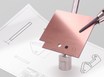
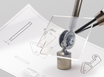
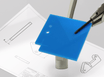
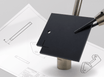
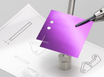
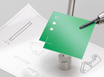
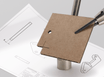
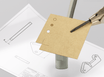
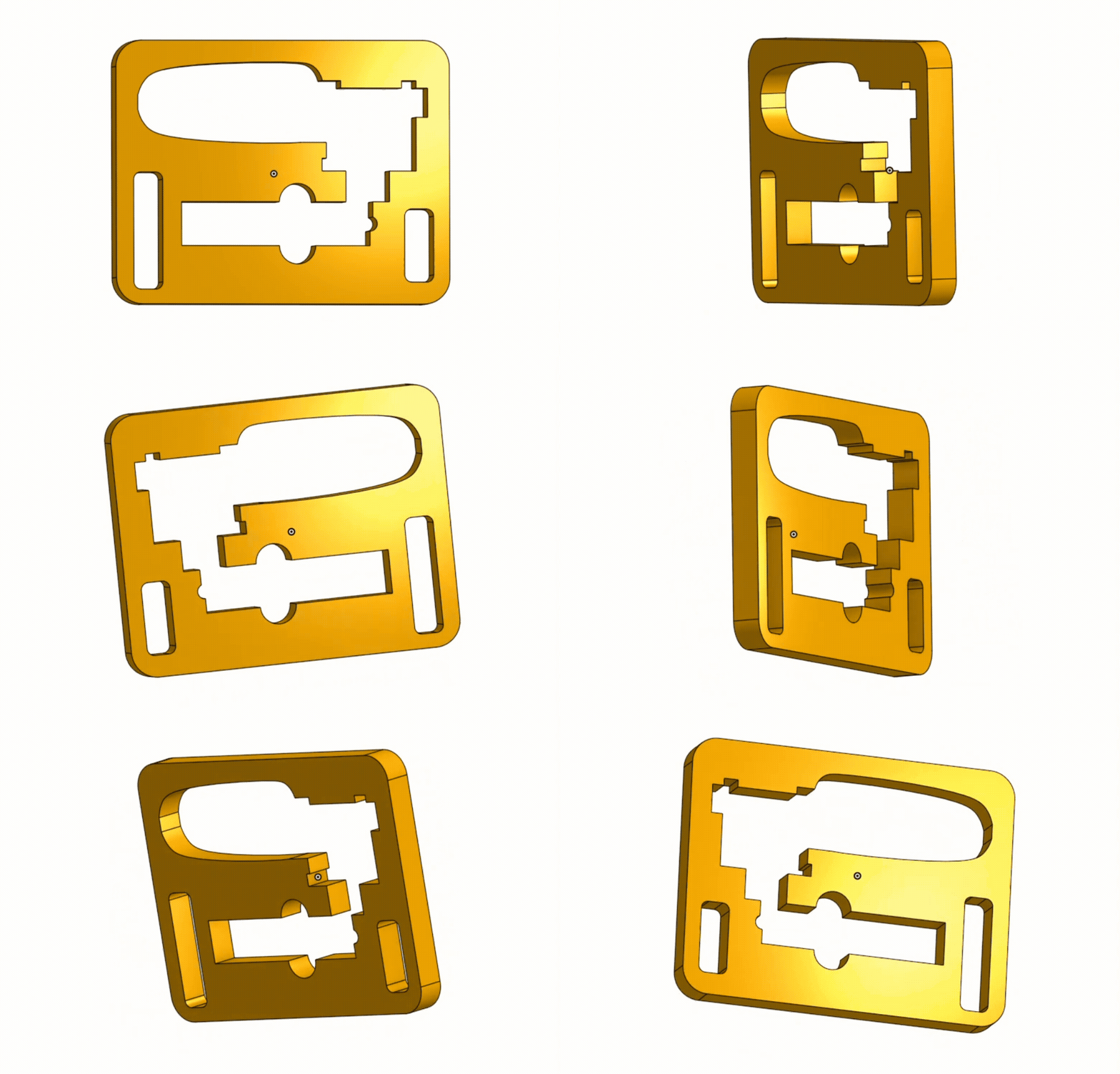
Until now, you ordered using 2D formats like DXF and PDF. This meant an extra export step for anyone designing in 3D and a workaround for those working with SVG. As we continuously improve our website to make laser cutting as easy as possible, this was a logical next step.
STEP: Order directly from your 3D model

If your design was ready in SolidWorks, Fusion, or Onshape, you previously had to export it to 2D. You also had to keep track of the thickness, orientation, and revision history separately. Now you can skip that step: order directly with the STEP file you already have. This keeps your 3D model as the single source for your order and prevents your 2D export and model from diverging.
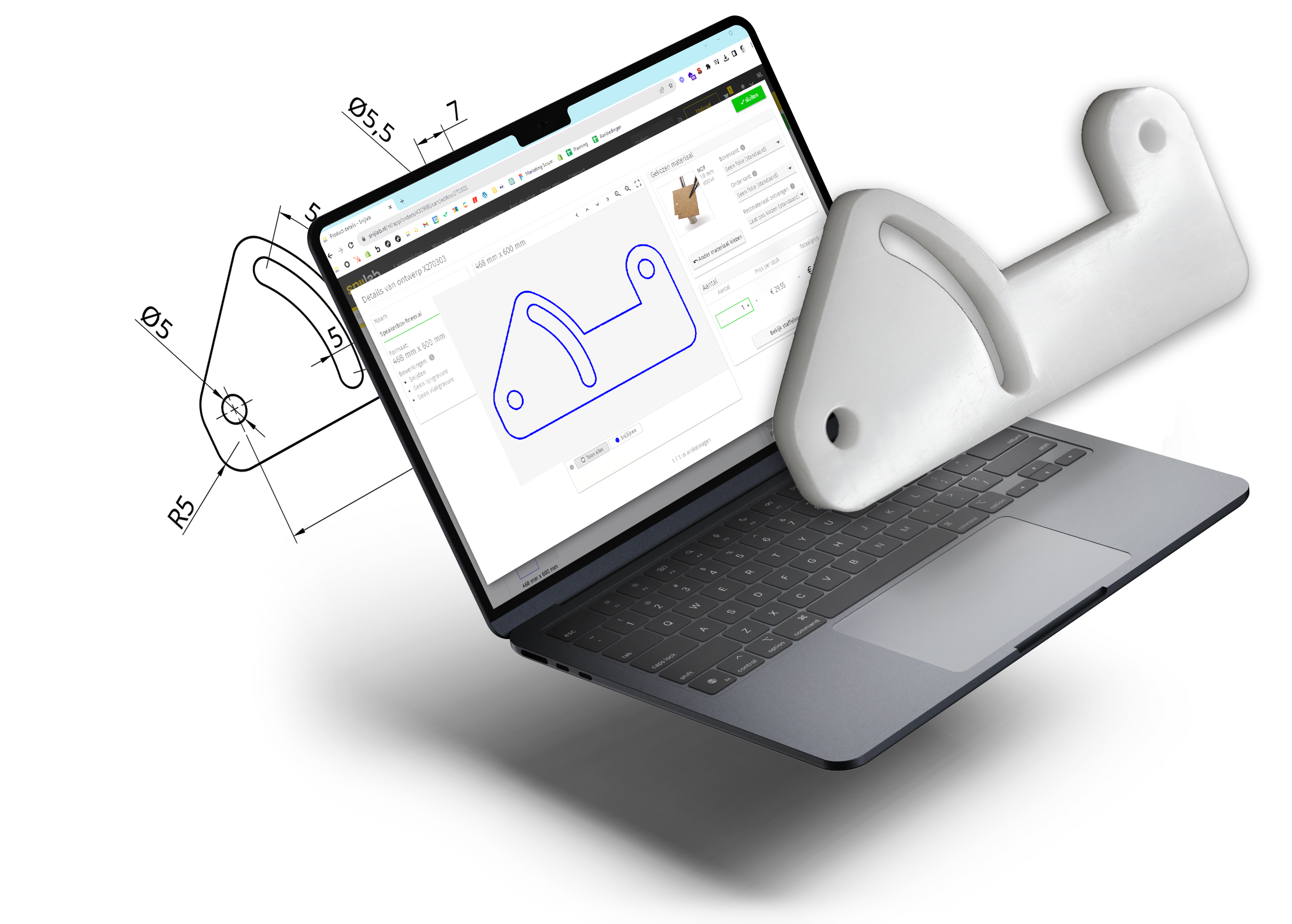
The editor now directly reads the solid. We extract the flat geometry from your part and immediately read the thickness. When you then choose your material, the thickness filter will already be correctly set.
What your STEP file needs to comply with
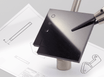
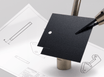
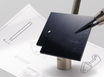
Laser cutting works with sheet material. The laser cuts from top to bottom through the entire sheet, so it can only create a 2D contour. Therefore, every part in your STEP file must be a flat section:
- Flat
- Uniform thickness throughout
- Without pockets, counterbores, countersinks, or other 3D features
Features that do not run through the entire sheet cannot be made by the laser. It will simply cut straight through them. A countersunk hole will therefore become a straight hole, and a pocket will become a cutout. Do you still want such features? Remove them from the model before uploading and have them added afterwards if necessary.
Upload complete assemblies

You can still upload parts one by one, but now you can also upload a complete assembly. The assembly will appear in your shopping cart with one line per part. This allows you to set the material and quantity for each part, for example, a casing in 3 mm PMMA with brackets in 5 mm POM. Do you want to apply the same settings to all parts? You can do that in one go with the batch editor.
SVG: No more detours via PDF or DXF

The editor now also supports SVG files, in addition to the formats we already supported: DXF and PDF. SVG is the common export format for programs like Adobe Illustrator, Inkscape, Affinity Designer, and Figma, and the standard format for browser-based design tools and most generative or scripted designs. However, until now you had to convert an SVG to PDF or DXF before you saw a price. Now you upload the file directly.
SVG is also useful because it's an open file format that you can easily script or generate with AI tools. Just ask your chatbot to create a simple design for you as an SVG. At the same time, it's powerful enough for complex cutting designs, and any browser or text editor can display it.
Pay attention to the unit
An SVG doesn't always have a real unit. If there's no unit specified in your file, we assume 1 unit = 96 dpi. Before we calculate a price, we'll ask you to confirm this. A file without a scale will therefore appear as a query in the editor, and no longer as a part with the wrong dimensions.
Why this update?
We are continuously working on our website and ordering environment, with one goal: to make laser cutting as easy as possible. In doing so, we constantly look for areas in the ordering process that are unnecessarily complicated. Export steps were high on that list.
Every export step between your design and your order is a moment when something can go wrong. An incorrect scale, an outdated revision, or a thickness that doesn't match your model is often only noticed once the parts have arrived. By ordering directly from your STEP or SVG file, we eliminate those intermediate steps. What you design is what you order.